
A companion app for browsing and working with your Content Manager dataset.Fast. Secure. Intuative.
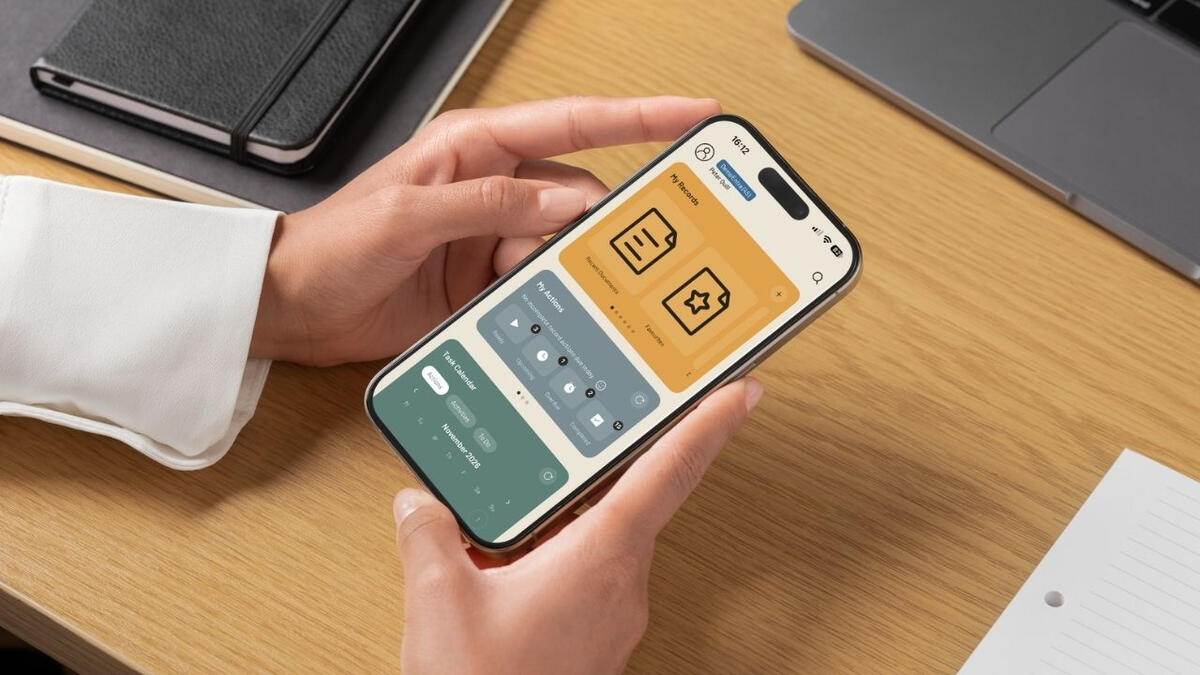

Requires a Content Manager ServiceAPI. Sign in with Entra, Auth0, Google and more.
Features
Records
Find any record, open any container, and read your documents, all from your phone.
Create and capture
Create new records and add photos from your camera or files from your files app.
Multiple connections
Save several Content Manager datasets, switch between them in a tap, and choose which one opens first.
Actions and to-dos
See what's due, read the notes and properties, and keep on top of your own work.
Search and favourites
Jump to the searches you use most, and keep your favourite records one tap away.
Show on map
Open a record's location in Apple Maps or Google Maps.
Calendar
A calendar of your due actions, activities and to-do items, all in one place.
Share and jump
Copy a link to a record or action and open it straight from the link, even from another app.


Security
Face ID or passcode lock: Require Face ID, Touch ID or your device passcode to open Flimbo. Choose how long it can sit in the background before it locks again, from immediately up to one hour.
Hidden in the app switcher: Flimbo's preview is replaced with its logo when it appears among your open apps. This is on by default.
Screen recording cover: While the screen is being recorded, Flimbo shows a privacy cover instead of your records.
You sign in with your own provider: Sign in on your identity provider's own page (Entra, Auth0, Google and more). Flimbo doesn't ask for your password and doesn't store it.
Managed by your organisation: Administrators can push the ServiceAPI address and set the lock, timeout and privacy options through MDM.
Clean sign-out: Signing out ends your session with the server and your identity provider on that device, not just in the app.
Setup
Prerequisites
iOS > 18
Content Manager > 23.4EXIF DataWhen you upload a photo or video containing EXIF Data you may wish for this to be captured on the record.If you'd like Flimbo to use the Include EXIF Data feature, where possible, for creating a new Record, you will need to create a new Additional field of type Text, call it EXIF Data and associate it with the appropriate Record Type(s), otherwise it will be disabled in the app.Content Manager PerformanceFlimbo can only perform as quickly as your Content Manager environment allows.Please ensure you are regularly performing the required database maintenance to keep your dataset functioning optimally. If your environment is fast, Flimbo will be too!Content Manager ServiceAPIIn order to use the Flimbo app you will require the following:• Content Manager ServiceAPI configured for OpenID Connect authentication
• Content Manager ServiceAPI accessible from the mobile device
• A valid network login against either the User Name or Additional Login(s) of the User Profile in Content Manager1. Registering the application in your Open ID Provider- Application type will be Web Application- The redirect URI will be https://<yourcmserviceapiaddress>/auth/flimbo- The app registration needs these delegated permissions:• email
• offline_access
• openid
• profile2. Add the identity provider to hptrim.configIn your ServiceAPI's installation directory, open hptrim.config and add an entry like this inside the existing authentication section<authentication allowAnonymous="false" slidingSessionMinutes="60">The clientID, clientSecret and issuerURI shown here are only an example of the shape these values take. Use the ones from your own identity provider app registration instead.Set the authentication in IIS to be Anonymous once configured and it will use the Open ID provider.3. Test it before using FlimboOpen this address in a browser first, to confirm OpenID Connect is working before trying to sign in through the app:https://<yourcmserviceapiaddress>/location/meIf it's set up correctly, you'll be prompted to sign in, then land on the page for your own Location record.If that works, Flimbo will too.Supporting larger file sizesIf checking in or creating a record with a larger document fails, two separate settings both need raising together: maxRequestLength (ASP.NET, in KB) and maxAllowedContentLength (IIS, in bytes). Both default to only a few MB. The example below allows up to 50MB:
<openIdConnect>
<add
name="flimbo"
clientID="00000000-0000-0000-0000-000000000000"
clientSecret="your-client-secret-value"
issuerURI="https://login.microsoftonline.com/00000000-0000-0000-0000-000000000000/v2.0/.well-known/openid-configuration"
/>
</openIdConnect>
</authentication><system.web>Managed Configuration (MDM)Flimbo supports Apple's Managed App Configuration, so organisations deploying Flimbo through an MDM (Intune, Jamf, Mosyle, or similar) can pre-fill and lock down key settings on managed devices. No special certificate or entitlement is needed. This uses the standard "App Configuration" section of your MDM console.Push a dictionary with any of these keys:• ServiceAPIURL (String): Pre-fills the Sign In screen with your organisation's CMServiceAPI address. Users can still change it: this only applies when nothing's been set up yet, so it never overwrites an existing connection.• HideInAppSwitcher (Boolean): Forces "Hide Screen in App Switcher" on or off under Privacy. Users can't change it while this is set.• ScreenLockEnabled (Boolean): Forces "Screen Lock" (Face ID, Touch ID, or device passcode) on or off under Privacy. Users can't change it while this is set.• ScreenLockTimeoutSeconds (Number): Forces the Screen Lock grace period. Must be one of: 0 (Immediately), 60 (1 Minute), 300 (5 Minutes), 900 (15 Minutes), 3600 (1 Hour).• DisableRecordingBlur (Boolean): Turns off the automatic blur Flimbo shows over its own content while the screen is being recorded or mirrored. This protection is on by default and has no in-app toggle at all. Unlike the settings above, it's not something a user can switch off themselves, since that would defeat the point. Set this only if your organisation specifically needs recording allowed.All five keys are optional and independent. Set only what your organisation needs to control. Anything left unset either stays a user preference (the first four) or stays on by default (DisableRecordingBlur).Configuration changes take effect the next time Flimbo is opened or relaunched.
<httpRuntime maxRequestLength="51200" />
</system.web>
<system.webServer>
<security>
<requestFiltering>
<requestLimits maxAllowedContentLength="52428800" />
</requestFiltering>
</security>
</system.webServer>
Privacy Policy
Effective date: 19 October 2026Flimbo ("the app") is a mobile client for Content Manager, a records-management system. This policy explains what happens to your data when you use Flimbo.The short versionThe developer does not operate any server, does not collect analytics, and does not contain advertising or tracking of any kind. When you use Flimbo, your device talks directly to your own organisation's Content Manager server: the developer of Flimbo never sees, receives, or stores any of that data.Who controls your dataFlimbo connects to a Content Manager ServiceAPI address that you or your organisation's administrator provides. That server, and the records, documents, and other information held on it, are owned and controlled entirely by your organisation, not by the developer of Flimbo. Your organisation's own privacy policies and data-handling practices govern that information. The developer of Flimbo has no access to it.Signing inFlimbo does not implement its own sign-in system. When you sign in, your organisation's Content Manager server itself handles authentication (typically via Microsoft Entra ID or a similar identity provider, configured by your organisation). Flimbo loads your organisation's own sign-in page in a standard web view and stores the resulting session cookie on your device, the same way a web browser would. Your credentials are never seen by, or sent to, the developer of Flimbo.What's stored on your deviceTo work, Flimbo stores a small amount of information locally on your device, using Apple's standard on-device storage (UserDefaults and the device's cookie store):• The address(es) of the Content Manager server(s) you've connected to, and the dataset name/ID returned by that server
• Your authentication session cookie, so you don't have to sign in every time
• Your own app preferences (e.g. which Home card you prefer, which predefined searches are shown)
• If turned on, a local list of your recent search terms - this stays on your device and is never sent anywhere
• A local list of locations you've recently chosen when reassigning an action, kept the same wayNone of this is transmitted to the developer of Flimbo.Signing OutSigning out ends your session for the connection you're currently signed into. It doesn't clear the session for any other saved connection, and it keeps your saved connections list and preferences. Removing a saved connection deletes that connection's entry (name, address, dataset ID) from your device, though its session data isn't cleared until you sign out of it or delete the app. Deleting the app removes everything: all saved connections, preferences, and session data.Temporary DocumentsWhen you open or download a document, Flimbo stores it temporarily on your device. That storage is cleared automatically as soon as you leave the app: switching to another app, locking your phone, or the app going to the background all clear it. It's cleared again each time Flimbo is relaunched, in case anything was left behind by an unexpected app closure. Deleting the app removes everything, including any temporary documents, immediately.Third PartiesFlimbo does not use any third-party analytics, advertising, or tracking services. The only other party involved is your organisation's own identity provider (e.g. Microsoft Entra ID), used solely to sign you in, and configured and controlled by your organisation, not by the developer of Flimbo.Changes to this policyIf this policy changes, the updated version will be posted at this same address with a new effective date.ContactQuestions about this policy can be sent to: [email protected]Questions about data held within a specific organisation's Content Manager dataset should be directed to that organisation's own Content Manager administrator, not the developer of Flimbo.
Support
Need a hand with Flimbo? Here's where to start.Prerequisites
Please ensure you have completed all requirements in the Setup section.The CMServiceAPI must be fully functional outside of Flimbo (e.g., accessible directly via a browser).Getting signed in
Flimbo signs in through your organisation's own Content Manager ServiceAPI, there's no separate Flimbo account.If sign-in isn't working, check with whoever manages your Content Manager dataset that your ServiceAPI address is correct and reachable, and that your usual Content Manager login still works.Connecting to more than one dataset
You can save multiple connections and switch between them any time, just tap the dataset name at the top of Home. Someone else can share you a connection link that adds theirs straight to your list, ready to sign in to.In-app Help
Every page's shortcuts, searches and sharing options are documented right in the app, look for Help under More. It covers search syntax, predefined searches, record actions, the Task Calendar, and more.Lost access after turning on Screen Lock?
If Face ID, Touch ID or your passcode stop unlocking Flimbo, your device's own passcode always works as a fallback. Screen Lock and hiding Flimbo's content in the App Switcher are both under More > User Interface > Privacy.A link isn't opening the right thing
Flimbo links only work on a device that already has the matching connection saved. If someone sends you a link for a dataset you've never connected to, save that connection first.Why do I get signed out sometimes?Flimbo doesn't set how long you stay signed in. That's controlled entirely by your organisation's identity provider and Content Manager server, the same way it works if you use Content Manager in a web browser. If your IT team has configured sessions to expire after a certain period of inactivity, Flimbo will follow that same rule.When your session does expire, Flimbo notices automatically and tries to sign you back in without any action needed from you. You'll briefly see "Hold tight, reauthenticating" while this happens. If your organisation requires you to log in again by hand (some do, for security), you'll be taken to the sign in screen instead.This isn't something we can change from within the app. If you're being signed out more often than feels right, that's a conversation for your IT team or Content Manager administrator, not something Flimbo controls.Still stuck?
Contact us at [email protected] and we'll help you sort it out
Terms of Use
Flimbo is a companion app for browsing and working with your organisation's own Content Manager dataset. The developer does not host, store, or have access to your data. It connects directly to your organisation's own Content Manager ServiceAPI, which your organisation owns, hosts, and controls.Your organisation's responsibilityBy using Flimbo, your organisation acknowledges and agrees that it is solely responsible for:• Installing, configuring, and administering its own Content Manager ServiceAPI
• Securing that ServiceAPI and the network it is exposed on, including firewalls, TLS/HTTPS configuration, and access controls
• Configuring and securing its own identity provider (e.g. Microsoft Entra) and authentication settings
• Testing its configuration before making it available to users, including via Flimbo
• Any exposure, loss, or unauthorised access to data arising from the configuration, security, or administration of its own infrastructureFlimbo is a client application only. It does not independently verify, audit, or guarantee the security of any organisation's Content Manager ServiceAPI deployment.No warrantyFlimbo is provided "as is" and "as available," without warranty of any kind, express or implied, including but not limited to warranties of merchantability, fitness for a particular purpose, or non-infringement. Use of Flimbo is at your own risk.Limitation of liabilityTo the fullest extent permitted by law, the developer of Flimbo shall not be liable for any indirect, incidental, special, consequential, or punitive damages, or any loss of data, arising out of or related to your use of Flimbo, or arising out of the configuration, security, or administration of any organisation's own Content Manager ServiceAPI or related infrastructure.Changes to these termsThese terms may be updated from time to time. Continued use of Flimbo after changes are posted constitutes acceptance of the updated terms.